Keywords
BlogSEO builds your keyword list automatically from your own website, then turns those keywords into a content calendar. You stay in control the whole way: add your own keywords, remove the ones you do not want, and star the ones that matter most.
Requirements
- A website connected to BlogSEO. BlogSEO crawls it to build your keyword list. See Dashboard → Integrations for supported integrations.
- Optional: Google Search Console connected to BlogSEO, for enhanced data and smarter topic selection. It unlocks rank tracking in your keywords table (Position, Position trend, and Ranking page) and lets BlogSEO skip keywords you already rank for when choosing topics. See Analytics to connect it.
Where your keywords come from
When you connect a website, BlogSEO crawls your entire site, maps your existing pages and keywords, and generates a keyword list tailored to your niche. Because it already knows what you publish, it avoids content cannibalization out of the box. Keyword research is always tied to the specific website you connect.
If Google Search Console is connected when your keywords are generated, BlogSEO also avoids prioritizing keywords you already rank for. A keyword is deprioritized when you already have long-form content targeting it, when its page is indexed on Google, or when one of your pages already ranks for it within the top 50 results, so your content plan focuses on fresh opportunities instead.
You can find and manage your full list under Dashboard → Keywords.
Reading the keywords table
Keywords are localized. The list shown in your table is generated for the locale set in Dashboard → Settings → Content, so changing your content locale updates the keywords you see.
Each row is a keyword, with these columns:
- Keyword: the search query. Use the star to mark it as a priority and the checkbox to select it for bulk actions.
- Date Added: when the keyword was added to your list.
- Volume: the estimated number of monthly searches for the query, which reflects how much demand exists for it. Volume trend (12mo) shows how that demand has moved over the past year.
- Competition: a score from 0 to 100% that estimates how hard it is to rank for the keyword.
- Opportunity: a combined score built from volume and competition. A keyword with high volume and low competition is a high-opportunity keyword.
- Position: your current Google ranking for the keyword, with Position trend (12mo) showing how it has moved. Position reflects your site's default locale, which you can change in your content settings.
- Ranking page: the page on your site that currently ranks highest for the keyword.
Rank tracking (the Position, Position trend, and Ranking page columns) becomes available once you connect Google Search Console to BlogSEO, the same connection used for Analytics.
Opportunity and Competition show N/A when there is no reliable data for the keyword, usually because the query gets very few monthly searches. Low volume does not always mean low value: a niche keyword you can realistically rank near the top for can still bring in qualified visitors.
Batch operations
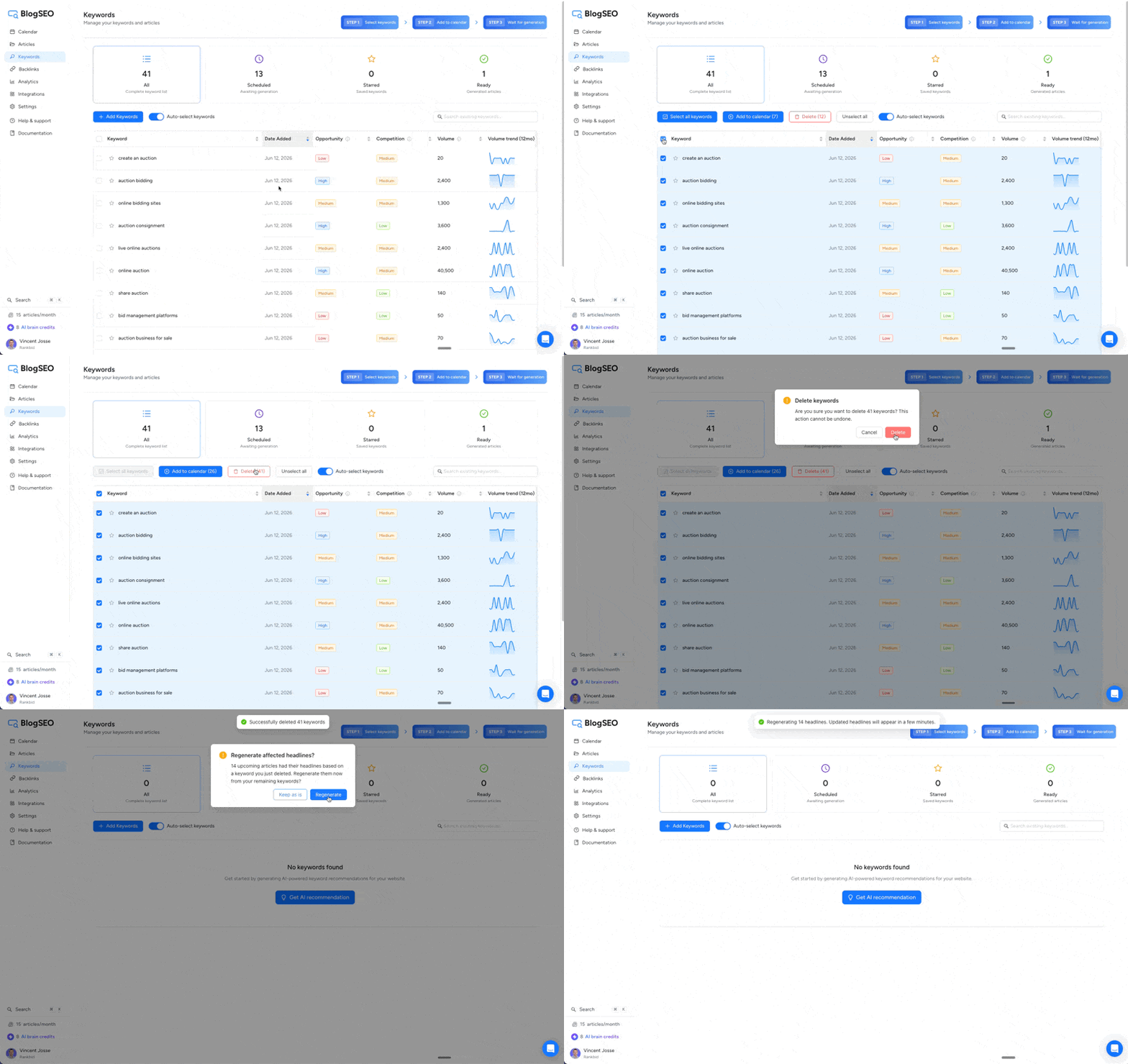
You do not have to manage keywords one at a time. Select several keywords with the checkboxes on the left of the table, or select your whole list at once, then run a single action on the entire selection, such as deleting the keywords or scheduling articles for all of them in one go. As soon as you select your first keyword, a select all option appears.
Adding your own keywords
If the generated list is not exactly what you want, add your own keywords on the Keywords page. You can paste a whole list at once when the keywords are comma separated.
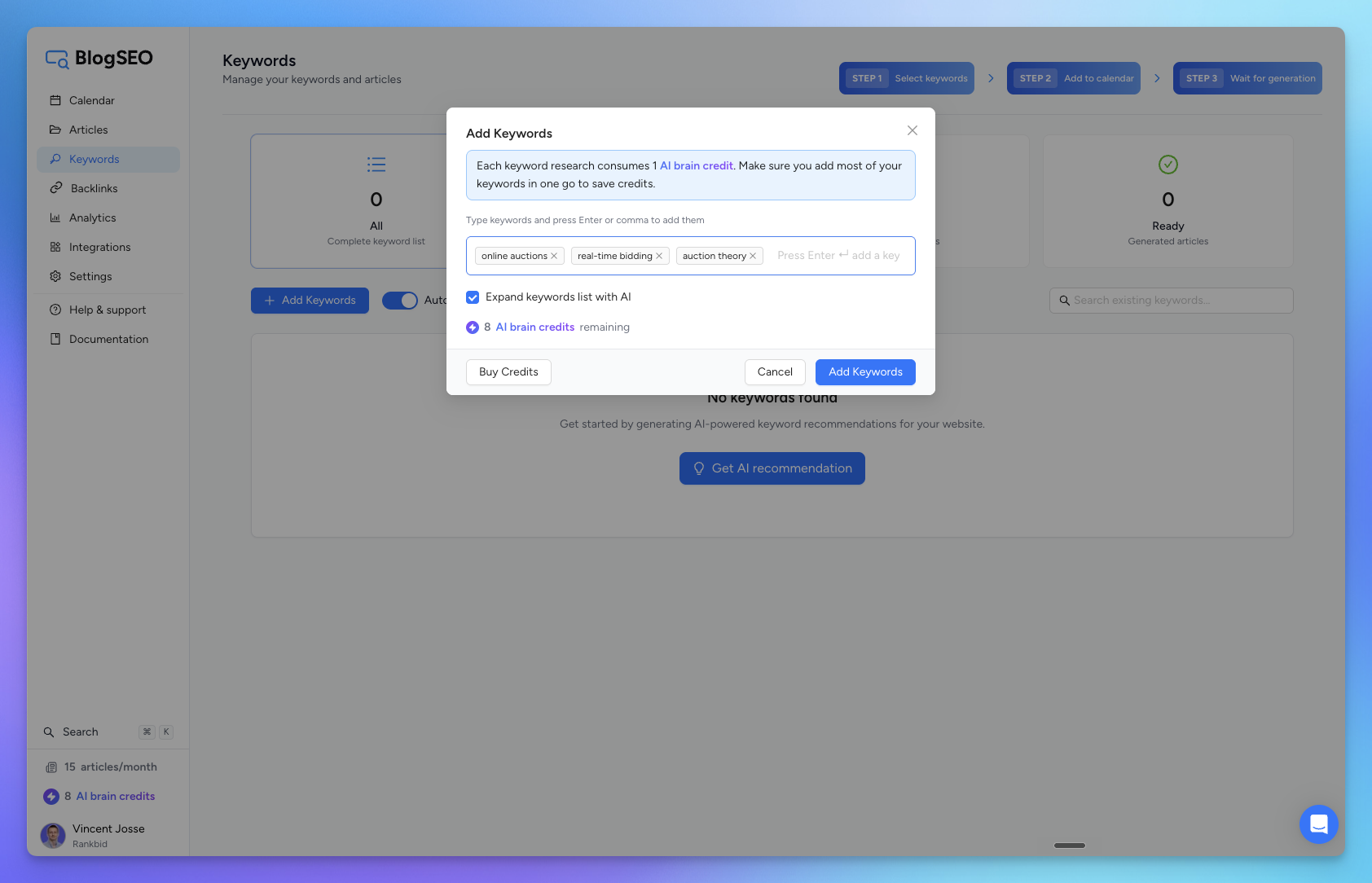
Adding seed keywords uses AI Brain Credits: each batch of up to 50 seed keywords costs 1 AI Brain Credit. Add as many keywords as you can in one go, because a batch with only a few keywords still costs a full credit.
When you add keywords, you can turn on Expand keywords list with AI to let BlogSEO find up to 450 additional keyword variations from the list you entered. This gives you comprehensive topic coverage and automates your topic clusters. Leave the option off if you want to keep strictly the keywords you typed.
Finding keyword variations
Click any keyword in the table to open its keyword details page. From there, use Find keyword variations to discover variations of that specific keyword and add the ones you want to your list.
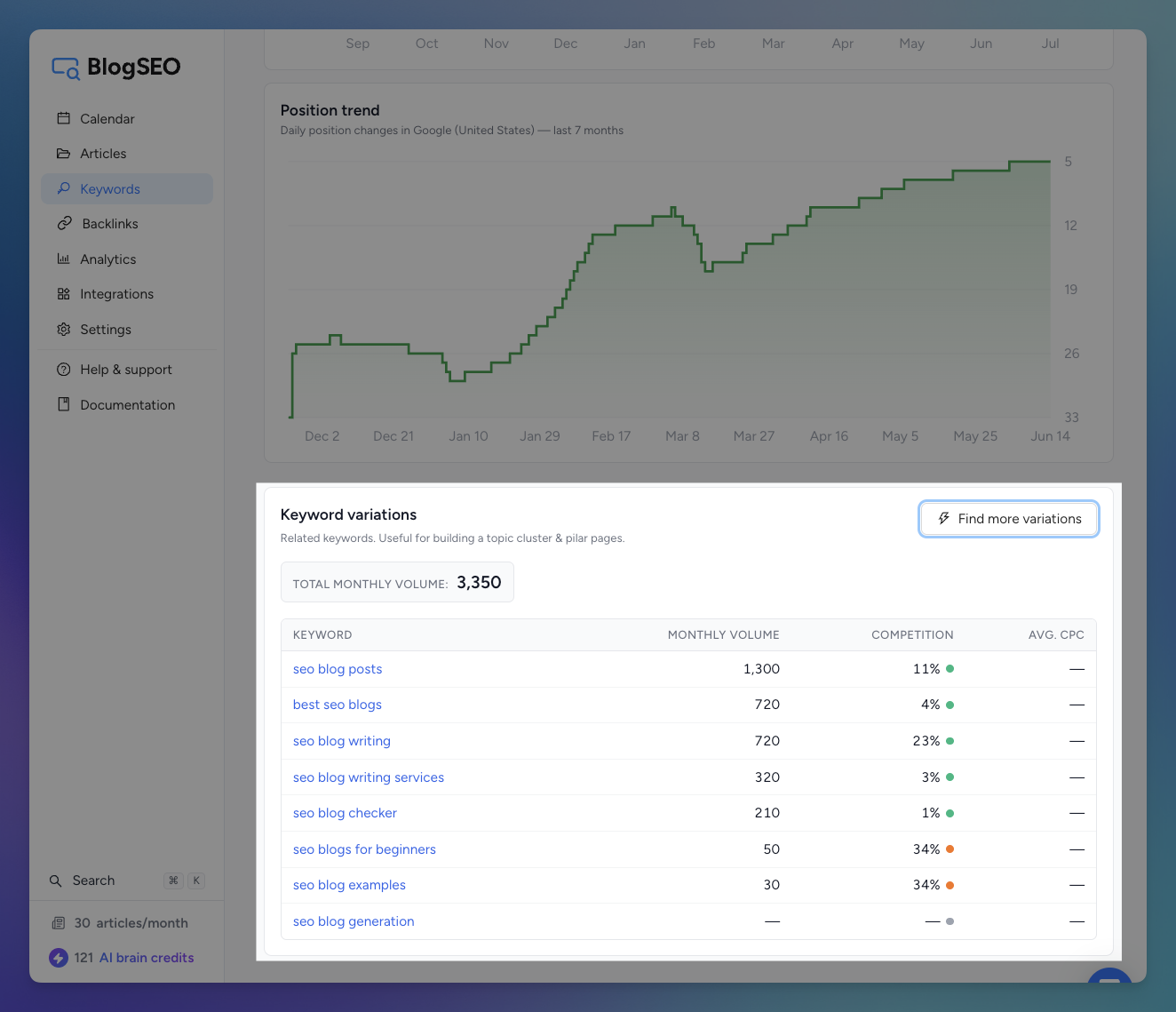
This complements Expand keywords list with AI: that option expands a batch of keywords as you add them, while Find keyword variations grows a single keyword you already have when you want deeper coverage of a topic.
Removing keywords
Deleting keywords is a batch operation: select the ones you no longer want and remove them in one click.
Keywords shown in grey have already been used to generate an article, so they cannot be deleted. You do not have to worry about them: they will not be reused in any future article.
Starring keywords
Star a keyword to mark it as a priority:
- At the next reschedule, which happens at the start of each billing cycle, starred keywords are scheduled first.
- When you schedule an article manually from the calendar, your starred keywords appear at the top of the list.
Starring also doubles as a quick way to save keywords so they are easy to find again later.
Refining your keywords and rebuilding the calendar
Want to start fresh? You can rebuild your content calendar around a cleaner keyword list:
- On the Keywords page, keep only the keywords you want and remove the rest.
- Go to Dashboard → Settings → Content and click Save.
- Confirm that you want to regenerate your headlines.
- After two to three minutes, your calendar is repopulated with fresh headlines and keywords based on your updated list. This also clears the planned articles tied to the keywords you removed.
Auto-select keywords
The Auto-select keywords toggle decides whether BlogSEO targets a keyword on the articles it schedules to your calendar each month. When it is on, BlogSEO automatically attaches a keyword from your list to every scheduled article. When it is off, BlogSEO still generates SEO-friendly articles, just without following a specific keyword.
Keyword targeting is optional either way. Because BlogSEO keeps a full map of your website, you can also point an individual article at a specific page to reference and link to, or write from your own custom instructions instead of a keyword.
Frequently Asked Questions
How does BlogSEO come up with my keywords?
When you connect your website, BlogSEO crawls your entire site and maps your existing pages and keywords, then builds a keyword list tailored to your niche. Keyword research is always tied to the specific website you connect, which is also how BlogSEO avoids creating articles that compete with content you already have.
Can I add my own keywords?
Yes. Open the Keywords page and add them manually. You can paste a whole list at once when the keywords are comma separated. When you add keywords you can also turn on "Expand keywords list with AI" to generate up to 450 additional keyword variations from your list for comprehensive topic coverage. Leave that option off if you want to keep strictly the keywords you typed.
How do I remove keywords I do not want?
Select keywords using the checkbox on the left of the table. As soon as you select one, a "select all" option appears so you can clear a full page in one click. Keywords shown in grey have already been used to generate an article, so they cannot be deleted, but they will not be reused in any future article.
What happens when I star a keyword?
Starring marks a keyword as a priority. At the next reschedule, which happens at the start of each billing cycle, starred keywords are scheduled first. When you schedule an article manually from the calendar, your starred keywords also appear at the top of the list, so starring doubles as a quick way to save keywords and find them again later.
What do "Opportunity" and "Competition" mean, and why are some keywords marked N/A?
Competition is a score from 0 to 100% that estimates how hard it is to rank for a keyword. Opportunity combines that competition with the keyword's search volume, so a high-volume keyword with low competition scores as a high opportunity. A keyword shows N/A for these when there is no reliable data, usually because the query gets very few monthly searches. Low volume does not always mean low value: a niche keyword you can realistically rank near the top for can still bring in qualified visitors.
Will BlogSEO cannibalize keywords I already rank for?
No. BlogSEO crawls your whole website and maps your existing keywords before writing anything, specifically to avoid content cannibalization. Even when two keywords are close, each article is written so it does not overlap or duplicate the content you already have.
Do I need to connect Google Search Console?
It is optional, but recommended. Connecting Google Search Console turns on rank tracking, which fills in the Position, Position trend, and Ranking page columns in your keywords table. It also sharpens keyword selection: when Search Console is connected at the time your keywords are generated, BlogSEO skips prioritizing keywords you already rank for and focuses your content plan on new opportunities.
How do I refine my keywords and rebuild my content calendar?
On the Keywords page, keep only the keywords you want and remove the rest. Then open your Content Settings, click Save, and confirm that you want to regenerate your headlines. After two to three minutes your calendar is repopulated with fresh headlines and keywords based on your updated list, which also clears the planned articles tied to the keywords you removed.
Do I have to target a keyword for every article?
No, keyword targeting is completely optional. Turn off the Auto-select keywords toggle and BlogSEO will keep generating SEO-friendly articles without targeting specific keywords. Because BlogSEO keeps a full map of your website, you can also point an article at a specific page to reference and link to, or write from your own custom instructions instead of a keyword.
Can my keywords span several niches?
Yes, your keywords and topics can cover multiple niches. Keep in mind that every article generated for a connected website is published to that same website, because the keyword research and internal links are based on that specific site. To cover very different niches, connect a separate website for each one.
How does BlogSEO make sure an article actually covers the keyword in depth?
During keyword research and deep research, BlogSEO pulls the entities, subtopics, and intent signals around your keyword from the live search results, top ranking pages, related searches, and competitor outlines. The planning step forces the article structure to cover them, and a final scoring step checks that they made it into the draft with enough depth, triggering targeted section rewrites when coverage falls short.