Odoo Integration
Connect BlogSEO to your Odoo blog to automatically publish AI-generated articles directly to your site, with full support for rich text, tables, cover and inline images, SEO metadata, and drafts.
Requirements
Before connecting your Odoo instance, make sure you have:
- An Odoo instance on Odoo.sh, self-hosted (Community or Enterprise), or Odoo Online. On Odoo Online (odoo.com) the external API is only available on the Custom plan. It is not included in the Free or Standard plans. Odoo.sh and self-hosted instances are not restricted.
- The Blog app installed. In Odoo, open Apps, search Blog, and click Activate (this installs the Website app automatically). Without it, BlogSEO has no blog to publish to.
- A user account with access to the Blog app, plus an API key for that user (see below). We recommend creating a dedicated user for the integration.
Creating an API key
BlogSEO authenticates with your Odoo using an API key tied to your user account.
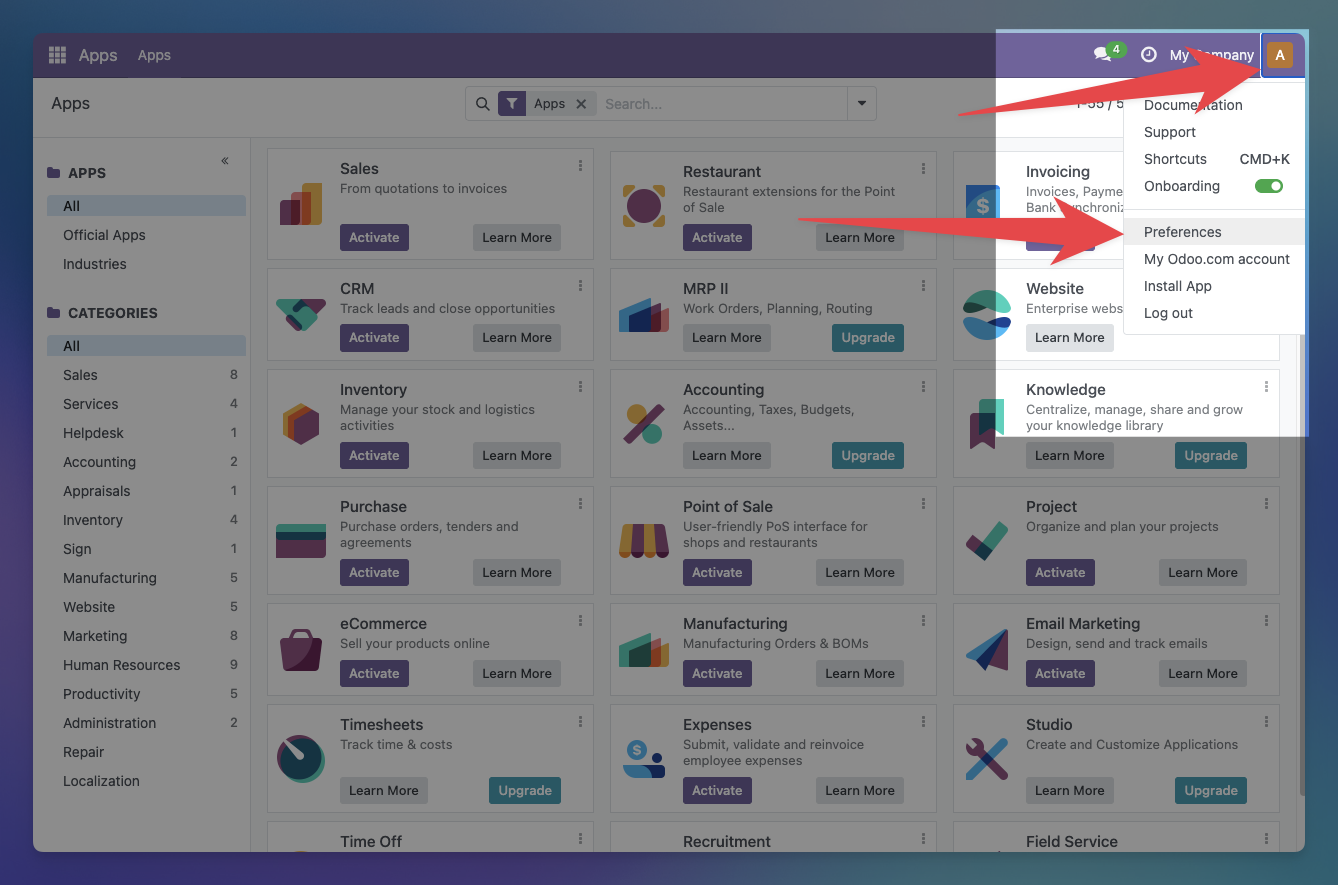
- In Odoo, click your avatar in the top-right corner and open My Profile (Preferences).
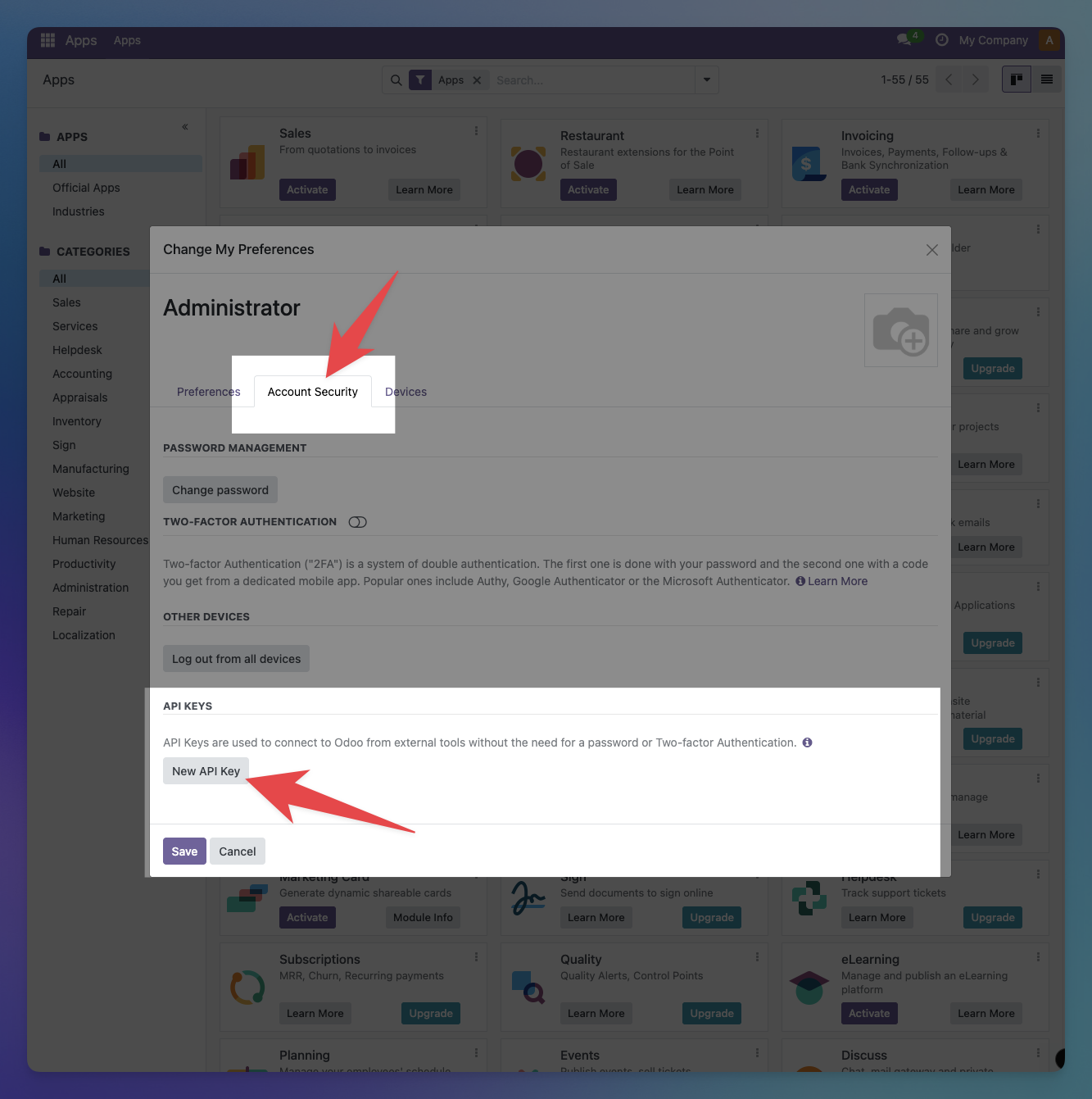
- Go to the Account Security tab and click New API Key. If your account does not have a password yet, set one first, then come back to this step.
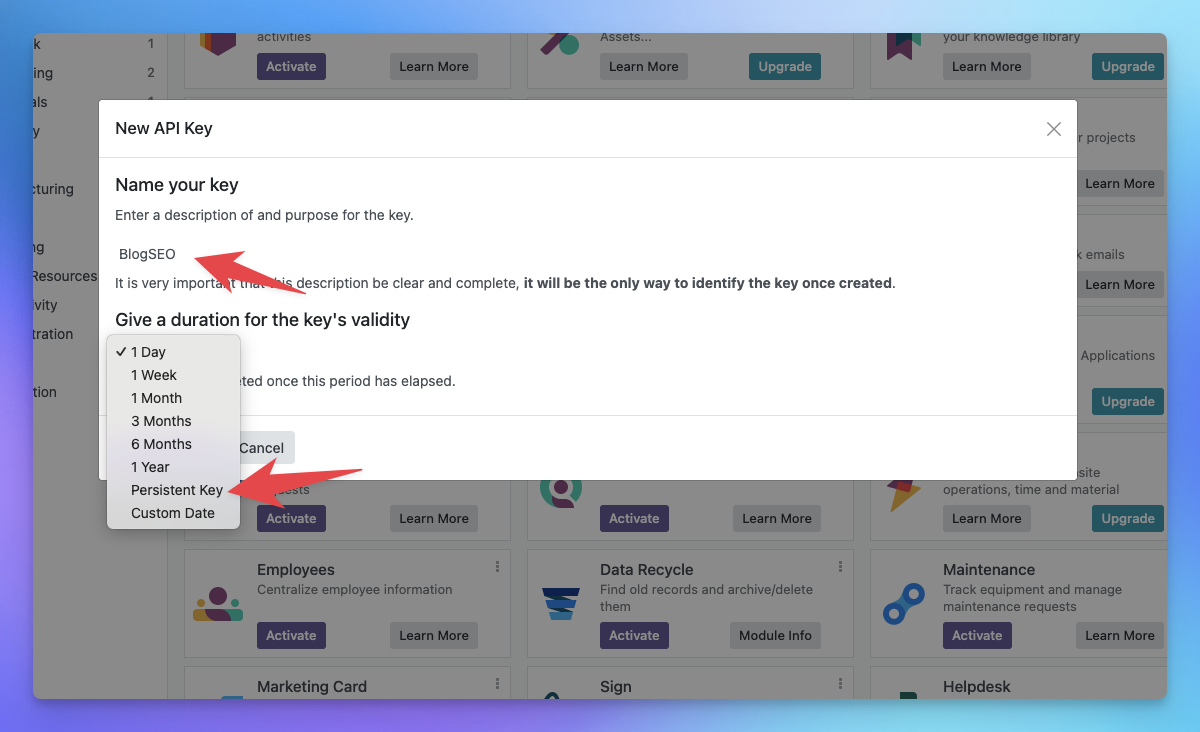
- Give the key a name (for example
BlogSEO) and choose how long it should stay valid, then generate it. Copy the key now. It is shown only once.
An API key inherits the full permissions of the user it belongs to. For tighter control, create a dedicated Odoo user with access to the Blog app and generate the key for that user.
Connecting BlogSEO to Odoo
- In your BlogSEO dashboard, go to Integrations → Odoo and click Connect Odoo.
- Enter your Odoo URL (for example
https://mycompany.odoo.com, or your Odoo.sh / self-hosted URL). - Enter your Login (email) and paste the API key you created.
- Click Test Connection to verify, then Connect.
BlogSEO detects your database name automatically from your URL in most cases, so you usually do not need to enter it. If it cannot be detected, a Database name field appears. On Odoo Online this is normally your subdomain (for example mycompany).
Selecting a blog
Odoo groups posts under blogs, so after connecting you choose where BlogSEO publishes:
- On the Odoo integration page, click Select Blog.
- Pick an existing blog from the list, or click Create new blog to create one. A blog is only created when you confirm.
- Save your selection. The integration becomes active once a blog is selected.
Choosing an author (optional)
In the same configuration dialog, the Author dropdown lets you pick which Odoo user appears as the author on published posts. Leave it empty to use the account the integration is connected with.
Publishing content
You have two options for publishing articles to Odoo:
- Auto-publish: enable auto-publish in the Odoo integration settings, and BlogSEO pushes articles to your blog as soon as they are generated.
- Manual publish: from the dashboard, select a generated article and click Publish.
BlogSEO handles the publishing details for you:
- Rich text and tables: articles are converted to clean HTML, so headings, lists, links, and tables render correctly in your Odoo blog.
- Images: the cover image and any inline images are uploaded to your Odoo instance and served from there. When you edit an article's images in BlogSEO and re-publish, the updated images are uploaded automatically.
- SEO metadata: the article title, meta description, and a custom URL slug are set on the Odoo post.
- Updates: editing an article in BlogSEO and re-publishing updates the same Odoo post instead of creating a duplicate.
To edit a post directly in Odoo, open it on your website and use the front-end editor (the Edit button). Odoo's back-end form only shows the title, subtitle, and publishing options, not the article body.
Draft mode
When draft mode is enabled, articles are created as unpublished posts in Odoo. Unpublished posts return a 404 for anonymous visitors but stay visible to logged-in Odoo users, so you can review them in your blog and publish them manually when ready.
Troubleshooting
The Blog app is not installed
BlogSEO publishes to Odoo's Blog app. In Odoo, open Apps, search Blog, and click Activate (this also installs the Website app), then reconnect.
Connection test fails
- Check the API key: make sure you copied the full key. Keys are shown only once, so generate a new one if you are unsure.
- Check the login: use the email address you log in to Odoo with.
- Odoo Online plan: the external API requires the Custom plan on Odoo Online. Odoo.sh and self-hosted instances are not restricted.
- Database name: if BlogSEO asks for a database name, enter the one for your instance. On Odoo Online this is usually your subdomain.
- Firewall / network: for self-hosted Odoo, make sure the instance is reachable from the public internet so BlogSEO's servers can connect.
Images not appearing
BlogSEO downloads your article's images and re-uploads them to Odoo. If the original image URLs are behind authentication or have expired, the upload is skipped. Re-generate or re-upload the image in BlogSEO and publish again.
For additional support, contact our team through the in-app chat or at support@blogseo.io.