Products
Import your product catalog into BlogSEO so your articles link to your real products and feature them in your article images, turning your blog into a sales channel.
The Products feature is in Beta. It is built for online stores: the Products page and catalog unlock once you connect a Shopify, Shopware, or BigCommerce store, or once BlogSEO detects your connected website as an online store.
Requirements
- An ecommerce store connected to BlogSEO. The catalog unlocks when you connect a Shopify store, a Shopware store, or a BigCommerce store, or when BlogSEO classifies your connected website as an online store. If you would like to use the feature and it is not showing up in your dashboard, reach out to us through the support chat inside the dashboard and we will enable it for you.
- Optional: Google Search Console connected to BlogSEO, to enrich each product with real search performance (position, clicks, and impressions). See Analytics to connect it.
- An active subscription for the spreadsheet import and the import from your website. Syncing from Shopify and adding products by hand are always available.
What the product catalog is for
Once your products are in BlogSEO, it can weave them into the content it writes for you. It mentions and hyperlinks your products inside articles, pointing each product name at its real product page, and it can feature the actual product in your article images instead of generic stock visuals. Your blog stops being a traffic channel only and starts sending readers straight to the products you sell.
You manage everything from Dashboard → Products.
Getting products into BlogSEO
There are a few ways to fill your catalog. You can mix them, and every product ends up in the same table.
- Sync from Shopify: the simplest option for a Shopify store. When you connect Shopify, BlogSEO imports your products automatically, and you can re-import at any time with the Sync Products button. This is covered in detail below.
- Sync from Shopware: when you connect a Shopware store, BlogSEO imports your catalog automatically, and you can re-import at any time with the Sync Products button.
- Sync from BigCommerce: when you connect a BigCommerce store, BlogSEO imports your storefront-visible products automatically, and you can re-import at any time with the Sync products button.
- Import from your website: if BlogSEO has crawled your site, it can read the product pages it found and let you pick which ones to add to your catalog. This option is rolling out, so it may not be available on every account yet.
- Import a spreadsheet: upload a CSV or Excel file and BlogSEO reads your headers and maps each column to the right field automatically with AI (title, description, product URL, image, price, brand, category, and SKU), so you can bring a catalog from any platform. To feature these products in your article images, make sure your file includes a column with each product's image URL, since that is the image BlogSEO uses as the visual reference.
- Add a product by hand: create a single product yourself when you only need to feature a few.
Use Add Products on the Products page to reach the import options, or the empty state buttons when your catalog is still empty.
If you sync from a store, you can also let BlogSEO re-import on its own every night rather than pressing the button yourself. See keeping your catalog in sync automatically.
Syncing from Shopify
When your store is connected, open Integrations → Shopify and use the Product Catalog section, or use Add Products → Sync products from Shopify on the Products page. BlogSEO imports your active products and shows how many were imported and when the last sync ran.
Each synced product carries its title, description, price, image, product page URL, brand, category, and SKU straight from Shopify. Products you remove or deactivate in Shopify are archived on the next sync and drop out of your catalog automatically, so the list stays in step with your store. Because Shopify is the source of truth, synced products are managed in Shopify rather than edited inside BlogSEO. You can still delete one to hide it, but it comes back on the next sync.
Importing products needs the read_products permission. The official BlogSEO Shopify app requests it for you. If you connected with your own custom app, add the read_products scope to your app, then use Re-verify access on the Shopify integration page, or delete and reconnect the integration.
To learn more about connecting your store to BlogSEO, read our dedicated Shopify integration page.
Syncing from Shopware
When your Shopware store is connected, open Integrations → Shopware and use the product sync, or use Add Products → Sync products on the Products page. BlogSEO imports your active products with their title, description, price, image, product page URL, brand, category, and SKU. Products you deactivate in Shopware are archived on the next sync, so the list stays in step with your store, and because Shopware is the source of truth, synced products are managed in Shopware rather than edited inside BlogSEO.
Importing products needs an integration that can read products. With Administrator access (recommended) this is already granted; with a restricted role, make sure the product read privileges are granted and use Re-check capabilities on the Shopware integration page. To learn more, read our dedicated Shopware integration page.
Keeping your catalog in sync automatically
Store syncs are one-off by default: BlogSEO imports your catalog when you connect, and again each time you press the sync button. If you add, reprice, or retire products regularly, turn on Daily automatic sync and BlogSEO refreshes the catalog for you every night instead.
The switch sits in the product import section of your store's integration page, just under the sync button — Shopify, Shopware, WooCommerce, or BigCommerce. It is off until you turn it on.
With it on:
- BlogSEO re-imports your catalog once a day, overnight around 02:00 UTC.
- New and updated products appear on their own, and anything you removed or deactivated in your store is archived, so your catalog keeps pace without anyone pressing a button.
- A night is skipped when the catalog was already refreshed in the previous 20 hours, so syncing by hand in the evening never causes a second import a few hours later.
- Only group admins and owners can change the switch. Other members can see it, but not flip it.
Your store needs to be connected and able to read products for the nightly sync to run. If the connection stops working or loses its product permission, the daily sync pauses until you reconnect, and the sync button is always there to re-import on demand.
How products appear in your articles
Products reach your content in two ways: BlogSEO can pick them for you, or you can choose them per article.
- Auto-mention: when this is on, BlogSEO automatically attaches the most relevant products to each upcoming article it has not generated yet, up to two products per article. It spreads mentions evenly across your catalog so the same few products do not appear every time.
- Per-article selection: when you customize an article, a product picker lets you choose exactly which products it should feature, up to three, overriding the automatic choice for that article.
However a product gets attached, BlogSEO mentions it naturally in the body and hyperlinks the product name to its product page, so readers can click straight through to buy.
Featuring real products in your article images
BlogSEO does not only mention your products in text, it can also place them inside the images it generates for your articles. When a product is set to be included in images and has a product photo, BlogSEO uses that photo as a visual reference while it generates the article image, so your actual product appears in the picture instead of a generic stock object. A cat food article shows your real bag of food, a skincare article shows your real bottle.
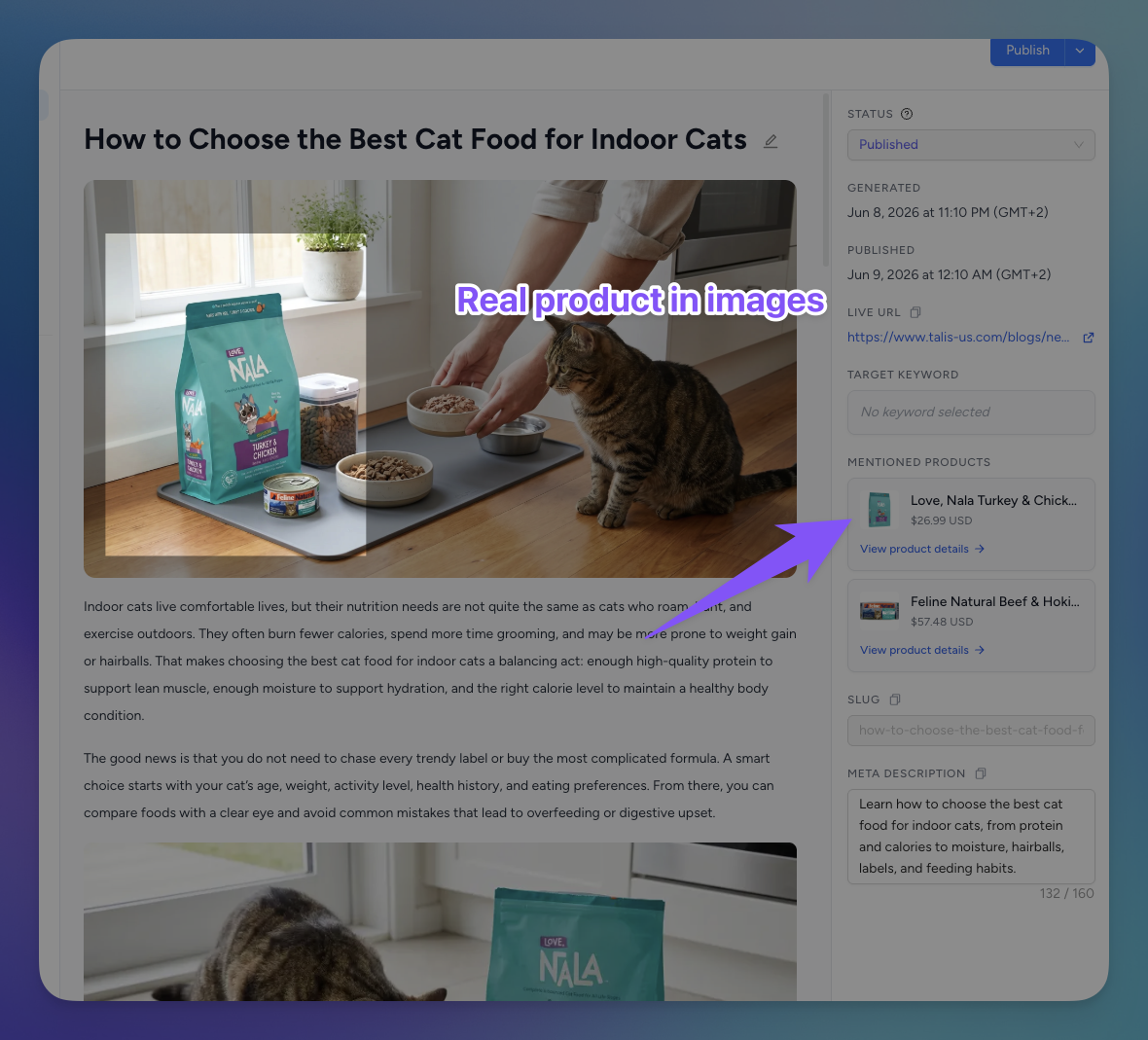
This works for any product that has an image, whether it was synced from Shopify or imported with an image URL. Use the Include in images toggle on a product to decide whether it can be featured this way.
Controlling which products get used
You stay in control of what BlogSEO is allowed to feature:
- The Auto-mention products in articles switch on the Products page is the master control. Turn it on to let BlogSEO select products automatically, and you can backfill the articles already on your calendar when you enable it.
- Each product has its own Auto-mention toggle, so you can keep a product in your catalog without ever having it mentioned automatically.
- Each product also has an Include in images toggle that decides whether its photo can be featured in article visuals.
Open any product from the table to reach its detail page, where these toggles live alongside the product's brand, category, SKU, and description.
Product search performance
When Google Search Console is connected, BlogSEO enriches every product with its own search data: average position, clicks, and impressions over the last 28 days, a position trend chart over time, and the search queries each product page ranks for. The product detail page becomes a small SEO dashboard for that product, so you can see which products already pull search traffic and which ones your content should support next. Without Search Console connected, the catalog still works for mentions and images, and the search cards simply stay empty until you connect it.
Managing your catalog
The Products page lists everything in one table, with stat cards for Imported, Scheduled, and Mentioned products. Each card doubles as a filter: click Scheduled to see the products lined up for upcoming articles, or Mentioned to see the ones already used in published content.
Open a product to see where it has been mentioned, which upcoming articles will feature it (you can detach it from any of them), its automation settings, and, when Search Console is connected, its search performance.
Frequently Asked Questions
Do I need Shopify to use products?
No. Syncing from Shopify or Shopware is the easiest path for those stores, but the catalog also unlocks for any connected website BlogSEO classifies as an online store. You can fill it by importing from your website, uploading a spreadsheet, or adding products by hand.
How many products does BlogSEO mention in an article?
When Auto-mention is on, BlogSEO attaches up to two products to each upcoming article and spreads mentions evenly across your catalog so the same products do not appear every time. When you select products yourself for a specific article, you can choose up to three.
Can I choose which products appear in a specific article?
Yes. When you customize an article, a product picker lets you choose exactly which products it should feature, up to three, which overrides the automatic selection for that article.
Will BlogSEO use my real product photos in the article images?
Yes. For any product you set to Include in images, BlogSEO uses the real product photo as a reference so the product appears in the generated article image instead of a generic stock visual.
I connected Shopify before the products feature existed and cannot import. What do I do?
Older connections were created without the read_products permission. With the official BlogSEO Shopify app, re-authorize from the Shopify integration page in one click. With your own custom app, add the read_products scope to your app, then use Re-verify access on the integration page, or delete and reconnect.
What happens to a product I delete?
Manually added and imported products are removed for good. A product synced from Shopify is recreated on the next sync, since Shopify is the source of truth, so deleting it only hides it until then.
Does importing products change which products show in my store?
No. BlogSEO only reads your catalog to reference products in content. It never edits, hides, or changes the products in your store.
Can BlogSEO re-import my catalog automatically?
Yes. Turn on Daily automatic sync in the product import section of your Shopify, Shopware, WooCommerce, or BigCommerce integration page and BlogSEO re-imports your catalog every night, so new products appear and removed ones are archived without you pressing the sync button. It is off by default, and only group admins and owners can change it.